


Quick wins are the number one topic for enterprises right now. AI is proving to be a powerful tool for efficiency and empowering employees and one compelling use case is creating chatbots that can quickly and accurately provide employees with the information they need – without needing to search. A chatbot powered by the organisations existing SharePoint and levergaing Retrieval-Augmented Generation (RAG) can bridge the gap between the chaotic documentation and employees needs by giving clear, context-specific answers.
In this post, I’ll walk through how to use Copilot Studio to build a simple chatbot that uses your SharePoint sites for RAG, allowing it to provide accurate and dynamic answers using your HR policy documents.
What is RAG and Why Use It for an HR Chatbot?
RAG combines the power of retrieval and generation to enhance chatbot capabilities. Instead of relying solely on a language model’s pre-trained knowledge, RAG retrieves relevant information from a company’s own data (like HR policies) to ground its responses in facts. This ensures that the chatbot’s answers are accurate, up-to-date, and aligned with company-specific requirements.
Why RAG for HR?
- Accuracy: The chatbot can reference the exact HR documents it finds the answers in, avoiding the risks of hallucinated answers.
- Relevance: Employees get targeted responses based on internal policies, rather than general advice.
- Scalability: No need to train a custom model – RAG works by augmenting existing language models with retrieval capabilities. It can also update any Vector stores daily (or at an interval you set) to ensure it never exceeds your staleness threshold.
Getting Started with Copilot Studio
Copilot Studio is Microsoft’s platform for building AI-powered copilots that integrates with your existing business data (very easily if staying in the Microsoft estate!).
NOTE: This is a really easy way to do RAG with Microsoft integration as it is the essentially the SaaS version, but it does not showcase more advanced topics like creating your own Vector Db, Chunking, Cognitive Search etc. I will do another post on more advanced topics once we get past the quick wins. There is a much more powerful pattern using Azure AI Search to manually index the site and give you full control but these APIs are in preview currently so lets stick to the supported and easier version!
COST NOTE: Its worth highlighting Copilot Studio has a 30 day free trial for anyone looking to try it out, but it costs $200 a month after this. For a low/no code solution I think what you can achieve in 30 days will more than justify the cost to your IT Manager, but its worth planning your time to make the most of the 30 day trial if you are just exploring so you make the most of it.
Cracking on though, here’s how you can use Copilot Studio to create a chatbot with Sharepoint RAG.
Step 1: Set Up Your HR Data
Before building the chatbot, you need to organize your HR policy documents. These documents will serve as the knowledge base for the chatbot.
This guide assumes that you are using Internal subsites for Company communication. This is essentially a pattern where each Business Unit has its own ‘private’ working site and a ‘public’ (in this case Internal users) site where approved and versioned content is shared with the wider business.
Document Preparation is key at this stage, ensure your HR documents are up to date, well structured, and free from unnecessary duplicates. Consider common questions, holiday policies, health benefits, onboarding guidelines etc.
Step 2: Build the Chatbot in Copilot Studio
Now it’s time to bring the chatbot to life using Copilot Studio! This might seem quick – but the basic implementation is crazy simple (if using Copilot Studio).
1. Create your Chatbot in Copilot Studio
Log in to Copilot Studio and click ‘Create’ in the left hand menu. From here, you can select ‘New Agent’. Below there are some prefilled options that you can explore that might help but for now lets make it from scratch.

There are five options here, lets take the first four.
Language – defaults to English, but quite a few others are supported. Ive not tested other languages, but pick as needed.
Description – this is your public facing description for your users who might use the bot, to understand its purpose.
Enter the following –
‘The HR Help Agent provides information on the benefits offered by your employer. This bot is kept up to date about different types of benefits such as health benefits, training, and holiday policies. ‘
Instructions – this is essentially your system prompt and tells your chatbot how (and how not) to respond.
Enter the following –
‘You are a HR Help Agent to provide information on all things HR for employees. ou will answer questions on the HR policies found and detailed in our SharePoint site. You will not answer any questions that are not directly referenceable using the policies found. When this happens, respond that they should contact HR directly. Respond to referenable inquiries by providing the benefit summary, any key information as bullet points. When the user requests for a summary of multiple, provide this is a table. When you answer, you will provide also provide a reference to where you found the information. Use a polite and professional tone. Answer in bold and underline fonts as necessary.‘

3. Augment the Bot with your Data
The final option is Knowledge which is where we can add our reference to any source we have access to. Here we will use Sharepoint, but you can point it at websites, your own data lakes or manually upload specific files if that’s more appropriate for you.
Click Add Knowledge button.

Then select SharePoint.

Here you will need to add a link to your SharePoint site. There is an example here, but essentially just make sure you include the SharePoint site name after /site.

To help with context, I have added a screenshot here of the site I am pointing at. It is a simple Demo site, so not a lot going on, but there is essentially a single employee handbook with all my policies in it. In real life, you will likely have specific policy documents for various things, as well as news and updates etc. Copilot Studio doesn’t care about this though, you can have one document or one hundred spread across one folder or hundreds and it will index them the same.

Click add twice to return to the main page and see your Knowledge reference. Its worth noting you can add multiple here, although I am not sure on the limit.

Click Create at the top and wait a few moments for it to index your site and set up your bot!
3. Test the Chatbot!
The agent page will load, showing the detail your provided in the main pane and a Test agent on the left. There are some really amazing extension options if your scroll down on the main pane, which I will cover in my next post, but think about a Chatbot that you can ask about the holiday policy and then make a new request in the same conversation by integrating with prewritten Actions. Very cool.

For now, focus on Test Agent pane on the Right. Lets start by asking it a question it knows, followed by a question it doesn’t, to see if it answers correctly.


The example of asking a question it knows, it identified the document and pulled out the key points for us. It also provides a clickable link to the original document ensuring the user knows it is accurate and can read themselves if desired.
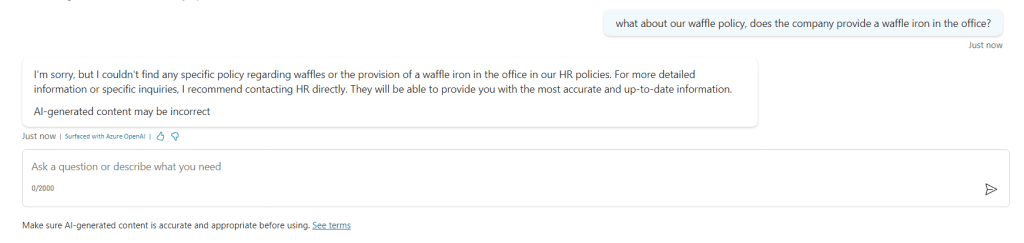
Equally, you can see that the Chatbot does not make up a response when asked about something it does not know. We catered for this in our System Prompt by telling it to contact HR directly, which is what is is doing correctly.
At this point we can deploy it into Teams (see my previous post for further info). Once its added you can start a new chat with the bot just as we did in the test, but now you’ve enabled instant access to that information for your employees.

Simple Workflow for the HR Chatbot
Here’s a summarized flow of how the RAG-based chatbot operates:
- User Query: An employee asks a question (e.g., ‘What’s the policy on remote work?’).
- Retrieval: The chatbot queries the underlying information it has access to via a Vector Db, retrieves relevant document chunks, and ranks the results.
- Augmentation: The retrieved chunks are combined with the user’s query.
- Generation: The bots model generates a conversational, context-grounded response. with a reference to the files it derived the information from.
- Response: The chatbot delivers the answer to the employee via a chat tool like Teams.
Why Use Copilot Studio for This?
- Ease of Integration: Copilot Studio integrates easily with existing tools like Teams and SharePoint, where employees are already working.
- No Need for Custom Model Training: With RAG, you can use existing language models, saving time and cost.
- Data Security: Copilot Studio ensures your data remains secure, complying with enterprise-grade security and privacy standards.
- Scalability: The solution scales easily, allowing you to add more documents or integrate other business functions as needed.
Key Takeaways
- A chatbot powered by RAG can significantly enhance employee access to HR policies by providing accurate, relevant, and conversational responses.
- Copilot Studio simplifies the process of building and deploying such a chatbot, offering seamless integration with enterprise tools and secure data handling.
- This approach requires minimal customization, making it an ideal first step for enterprises exploring AI to improve internal processes.
By implementing an chatbot with RAG, enterprises can improve employee satisfaction, reduce the workload on HR teams, and streamline access to critical information. Ready to start building? Dive into Copilot Studio and see the potential for yourself!

 Masters Development